 WeightSnap
How to use WeightSnap
The complete guide, updated for version 3.4 (September 2026). Fifteen minutes to read, or jump straight to what you need.
WeightSnap is a GLP-1 and peptide tracker built around one question: is this actually working? This guide walks every surface of the app in the order you will meet them, from your first minute to the reports you can hand a prescriber. If you have not downloaded it yet, it is free on iPhone and Android with a 14-day trial of everything.
The screens below are the iPhone app. The Android app matches it screen for screen, with the few differences called out where they matter in this guide: health import runs through Health Connect instead of Apple Health, and the AI coach and the AI body-fat estimate are iPhone only.
1. Getting started and choosing your tracking style
Onboarding takes about two minutes, and almost every input is optional. It asks what you are tracking (pick your medication, or "Not on GLP-1 yet" if you are not on one), when your last dose was (or, if you skipped the med, your goal: lose, maintain, or gain, the one answer it insists on), and your current weight, which you can type, import from Apple Health or Health Connect, or add later. Two quick feature previews, a recap, and you are in. If you are mid-journey, give it your real last dose date: your charts and cycle boundaries are honest from the first open.
The app's most important choice is no longer an onboarding question, because you should be able to change your mind any time: it is a toggle called By feel view, at the bottom of the Home tab. By feel means no food logs, no macros, no wearable. Your whole daily job is three taps, and Home becomes a calmer board built around them. Toggle it off and you are back to the full layout, where Apple Health on iPhone, or Health Connect on Android, can pour in weigh-ins, steps, workouts, and calories on their own. It is the same data wearing two layouts, so nothing is lost when you switch.
Apple Health offers two separate imports, and this matters: weight import (a smart scale that syncs, or weigh-ins you log in the Health app) and activity import (steps, active calories, heart rate, sleep). Take either or both. A smart scale with no watch is a fully supported combination, and the app's boards size themselves to whatever data you actually have. On Android, the same two imports run through Health Connect, and if the import ever shows nothing despite permissions being on, the Health Connect weight sync guide walks through why and the fix, app by app.
2. Your first week: what to do right after onboarding
WeightSnap is deliberately quiet on day one. Cards earn their spot as your data accumulates, so if something you read about below is not showing yet, it is not missing; it just does not have enough data to be honest about you. Here is what actually matters in week one:
Log what happens, as it happens. Your next dose sits queued on the Doses tab, and logging it is one tap: the app records your usual amount and injection site and leaves a receipt you can edit. Weigh in when you weigh in. Answer the three-tap check-in when the card asks. That is the whole job.
Turn on dose reminders. Beyond the nudge, the reminder itself can do the logging: long-press the notification on iPhone, or expand it on Android, and tap "Log my usual dose". It is recorded without opening the app, from your lock screen on iPhone and from the notification's Log action on Android.
Set up your vial, if you use one. Tell the app what is in the vial and how much water went in, and from then on the med's page keeps the draw line and the supply runway current, down to the day it runs out. Section 11 has the details.
Make the app speak your language. Tap your med on the protocol card and the page you land on is the editor: dose, schedule, sites, color, all changed in place. If you think in brand names, rename it: "Wegovy" instead of semaglutide is one tap, and prescriber exports keep the generic name.
Then let the app come to you. Your Feel Report appears after three tagged days. The verdict starts in Building and counts down to your first real report, typically around two weeks in. Stall Check and Wear-Off Detection need weeks of history before they can say anything worth reading. That pacing is the design: nothing renders until your data justifies it.
3. Logging doses
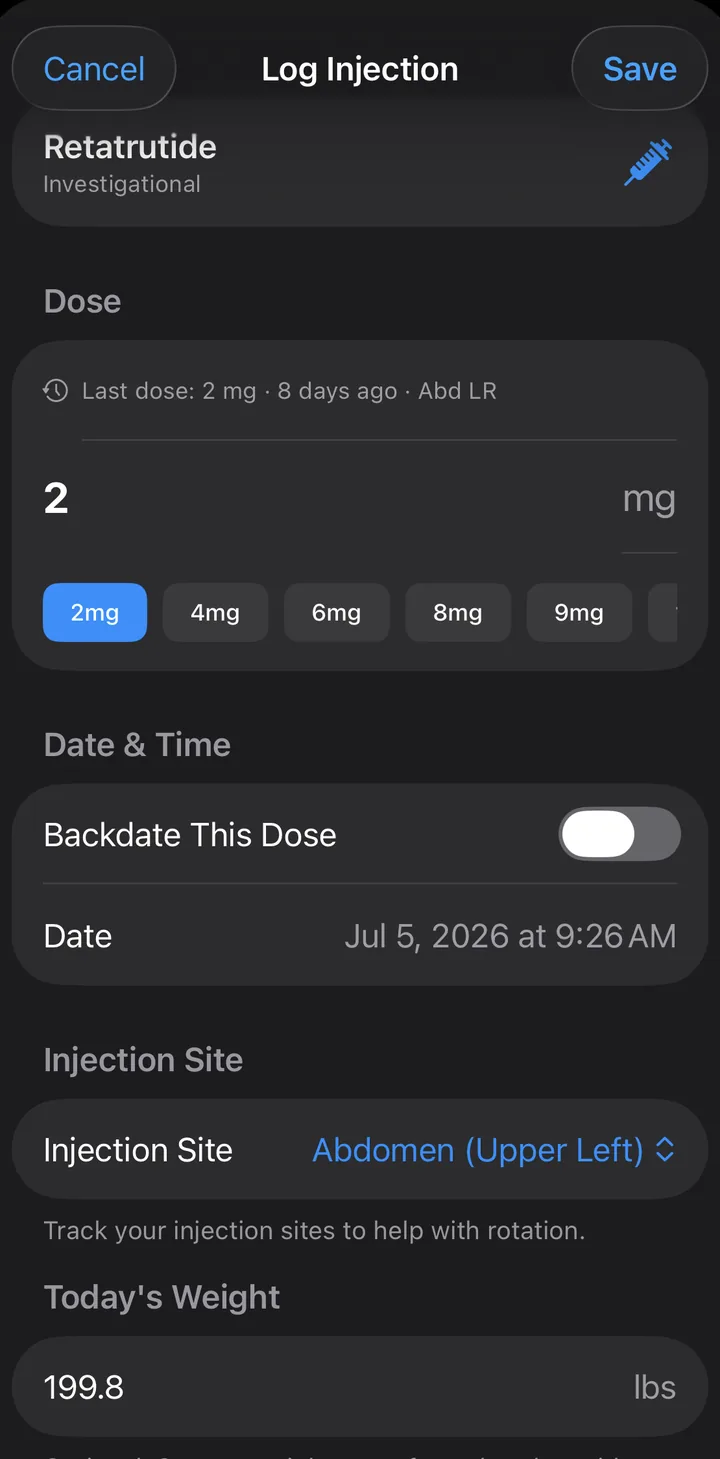
Tap the plus button on the Doses tab. A dose entry takes the amount, the date, and optionally the injection site, and the app handles the rest: your schedule, your cycle boundaries, and your saturation curve all update from it. You can weigh in on the same sheet, one less step on shot day.
Already mid-journey when you install? Onboarding asks for your last dose and lets you add historical doses in bulk, so your charts are honest from the first open. Missed logging a dose from last week? Backdate it from the same sheet.
Since version 3.3, the routine shot is even shorter. The queued dose on the Doses tab logs with one tap, recording your usual amount and site with an editable receipt. With reminders on, the app does not even need to be open: long-press the dose reminder notification and tap "Log my usual dose". And the site picker now shows when any of your meds last used each spot, so the most-rested site is one glance away, even on a multi-peptide protocol.
4. The verdict card, every state explained
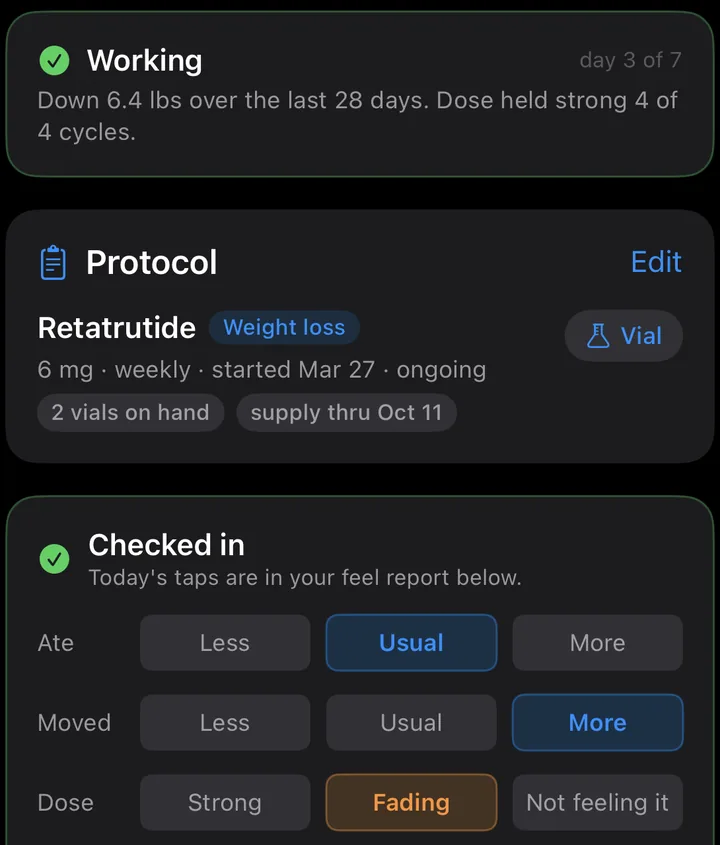
The top of the Doses tab is one word backed by arithmetic:
Building means you are under two weeks in, or there is not enough weight data for an honest trend yet. It is not a waiting room: the card shows your medication level building toward steady state and counts down to your first report.
Working means your weight trend is moving toward your goal, and the receipt is right underneath: "Down 6.4 lbs over the last 28 days. Dose held strong 4 of 4 cycles."
Steady is the maintenance version of Working. If your goal is holding, flat is the win, and the card says so.
Worth watching means something changed: the trend went flat against a loss goal, or your dose-feel tags have been reading fading. It is deliberately calm. No alarms, just the numbers that triggered it.
5. "How'd today go?" and the three chips
The Check In card asks three questions a day, each answered with one tap, each compared to your usual: how you ate (less, usual, more), how you moved (less, usual, more), and how the dose feels (strong, fading, not feeling it).
That is the whole entry, and it is enough. These taps feed your Feel Report, the verdict, Stall Check, and Wear-Off Detection. If you would rather answer once a week instead of daily, switch the cadence in Settings and the card asks at the end of each cycle instead.
6. Your Feel Report
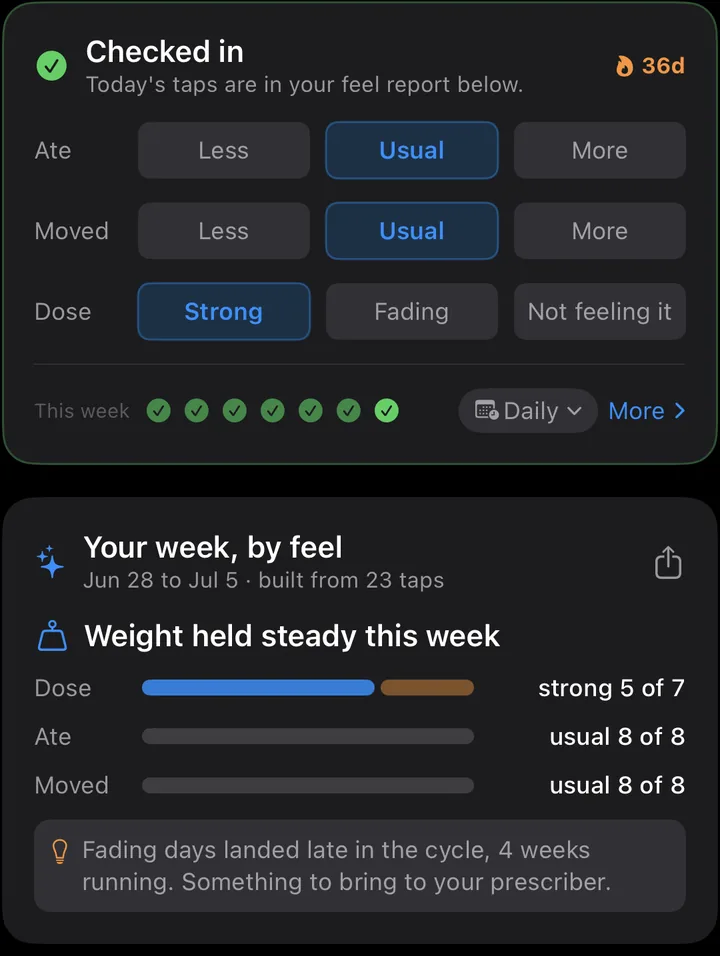
After three tagged days, "Your week, by feel" appears below the Check In card: your weight movement for the week, and proportion bars for dose, eating, and movement. When a pattern repeats, the report says so plainly: "Fading days landed late in the cycle, 4 weeks running. Something to bring to your prescriber."
7. Reading the saturation chart
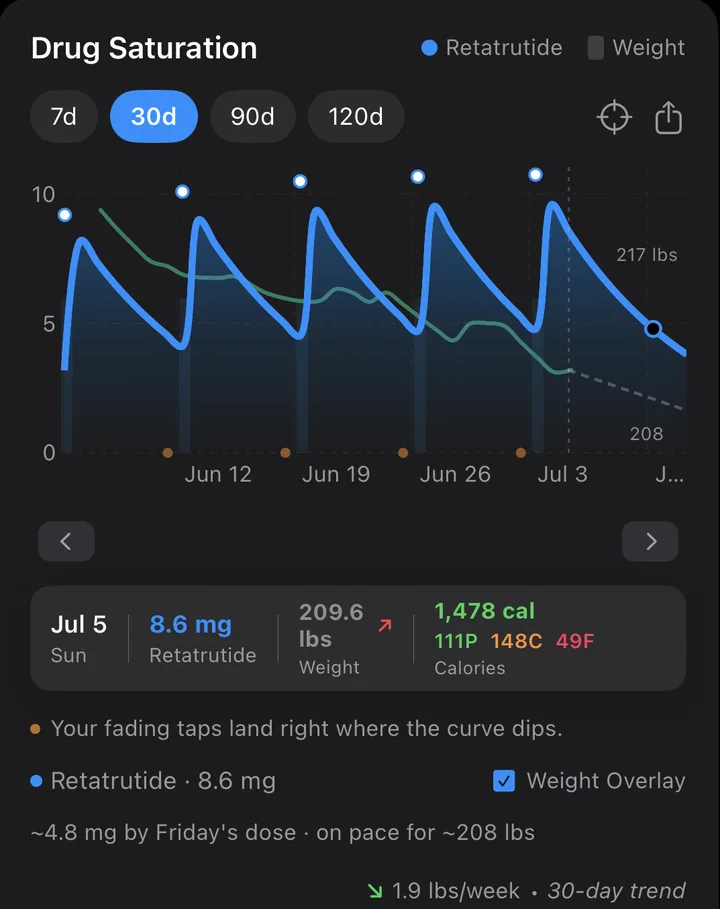
The blue curve is your estimated medication level, computed from your real dose history and published half-life data. It saw your missed dose, your dose change, and your switch day, because it is built from your log.
Scrub any day to see your level, weight, and nutrition together. Pinch to zoom into a week, and your weigh-ins become labeled bars. Pan while zoomed to travel through history. Toggle the weight overlay to see both lines against each other, and the line under the chart reads your future: the projected level at your next dose and the weight you are on pace for.
8. Cycles and recaps
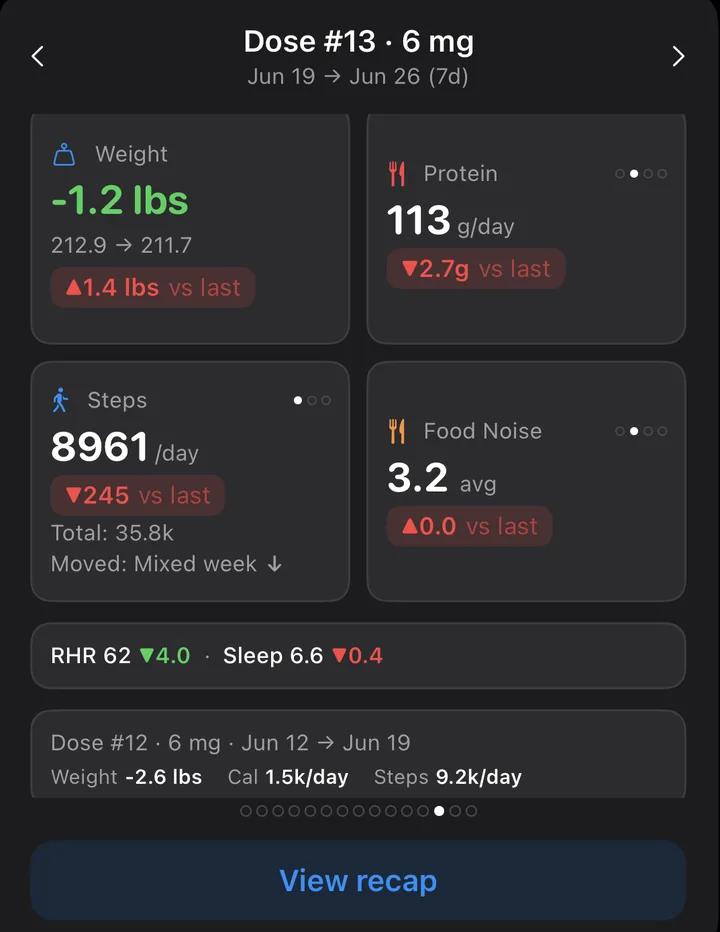
Each dose opens a cycle, and the cycle card scores it: weight change, eating, movement, and how you felt, every tile compared to the cycle before. Swipe left and right to move between cycles. Tap any tile to rotate through its metrics; tiles only offer metrics your data actually has, so nothing renders empty. Completed cycles get a Recap: the full story of that week in one shareable card.
9. Stall Check
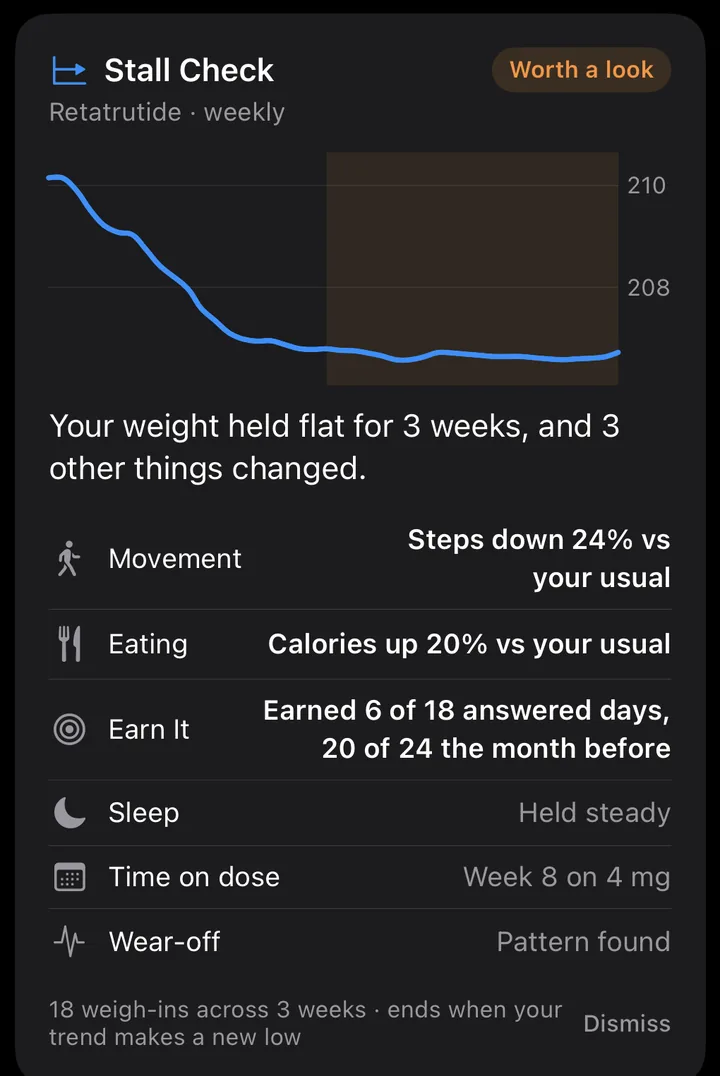
Plateaus happen on every GLP-1, and the cause is usually quieter than you think. When your smoothed trend goes genuinely flat for weeks, Stall Check comes to you and lays out what moved during the flat stretch and what held: movement, eating, sleep, your dose-feel tags, plus context like time on your current dose.
Sometimes it shows you the cause. Sometimes it shows you something more useful: nothing you did changed, which points the conversation at the dose or plain physiology instead of at you. The card dismisses itself when your trend makes a new low.
10. Wear-Off Detection (Beta)
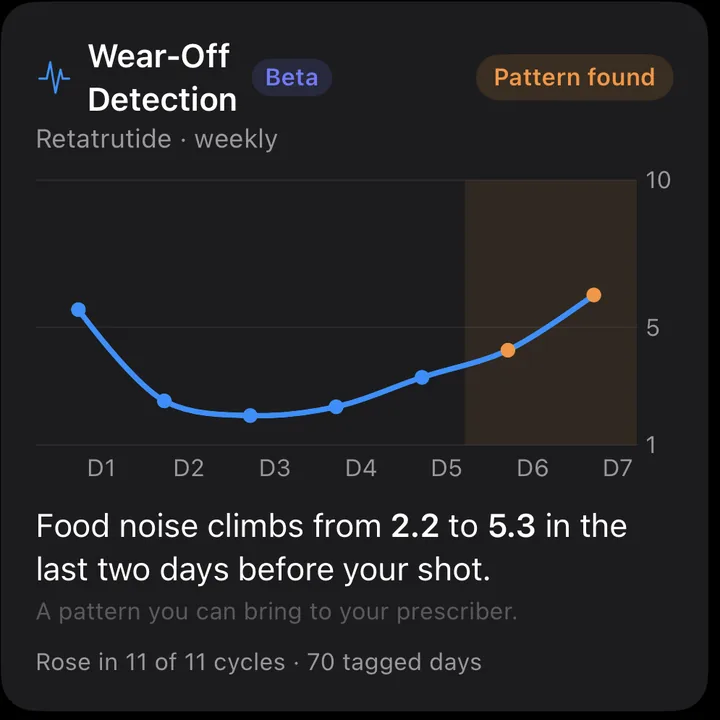
Is the dose fading before your next shot, or is it in your head? Wear-Off Detection reads your daily tags across cycles and names the pattern with counts: what climbs, by how much, in how many cycles. That is a sentence a prescriber can act on, whether the answer is a timing change or reassurance.
11. Protocols, vials, and the reconstitution calculator
The Protocol card on the Doses tab is your whole regimen at a glance: each compound with its dose, schedule, and cycle status. The library covers 30+ peptides and popular blends like KLOW, and custom compounds are a few taps.
The med page is the editor. Tap any compound on the protocol card and change things right where you see them: dose, schedule, injection sites, color. The separate Edit button is gone because nothing needs it anymore. Built-in GLP-1s can also wear the name you actually use, so "Wegovy" instead of semaglutide is one tap from a brand-name chip, and exports for your prescriber keep the generic name.
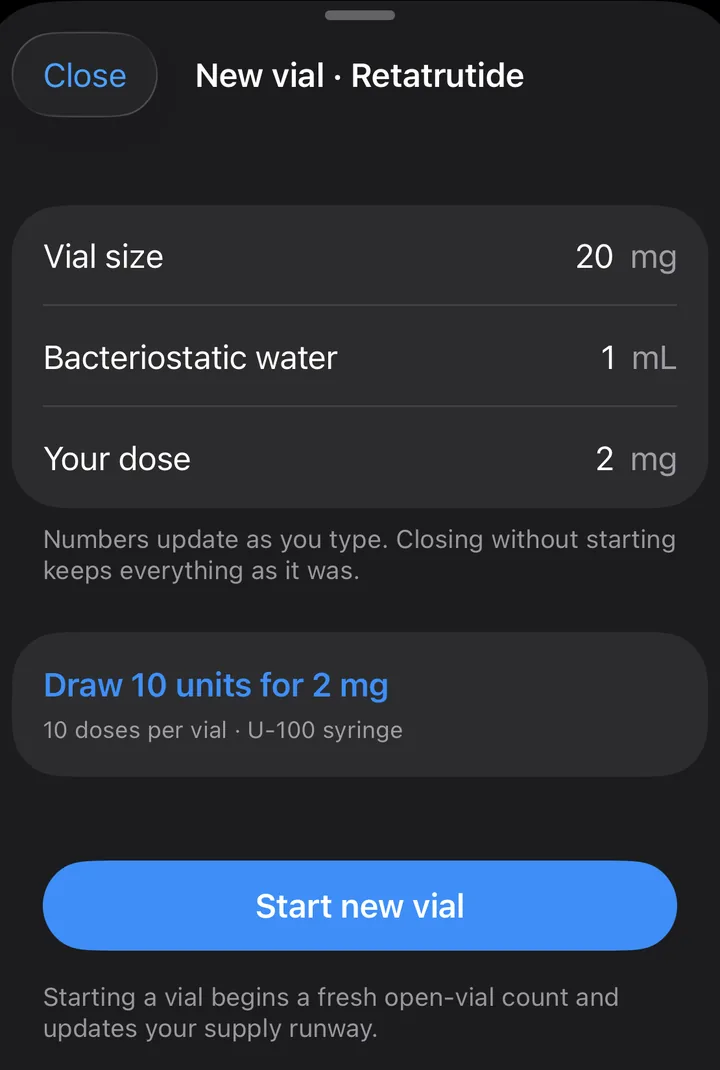
Vial tracking knows what is open and what is on hand, and how long it lasts at your current dose, so "supply through October 11" is a fact, not a guess. Sealed vials on the shelf are counted by size, so a mixed stash (two 10 mg, one 5 mg) stays honest, and premixed vials are supported alongside powders. The reconstitution calculator does the math nobody enjoys: vial size, BAC water, and the exact draw for any dose, including the real per-compound amounts inside a blend.
Pausing a med (new in version 3.4)
Going away for a week, waiting on a vial, or taking a planned break? Open the med's page and tap Pause this med; it sits directly above the remove option, because a break is usually what people actually want when they reach for remove (the remove confirmation will even ask if you would rather pause). Pausing quiets the med's schedule everywhere at once: no due or overdue rows, no queued doses, no reminders, and nothing piles up while you are away. Everything about the med stays put: your dose history, vial inventory, settings, and charts. The saturation curve keeps telling the truth, decaying honestly through the gap.
Right after pausing, one optional tap can tag the break (Vacation, Out of supply, Planned break, or Other), and the med's page reads it back: "paused since June 3 · vacation". Skipping the question costs nothing. On the protocol card, the med's line shows paused in place of ongoing, so a paused med stays visible without nagging you.
Coming back is one tap on the med page, or no taps at all: logging a dose resumes the med automatically, anchored on that dose. Either way, your schedule picks up from the day you resume, so you are never greeted with a wall of overdue for a break you chose. And if a med has sat quiet for well past its usual interval, its overdue row offers a small "Pause?" shortcut, right at the moment a break is the likely truth.
12. Earn It
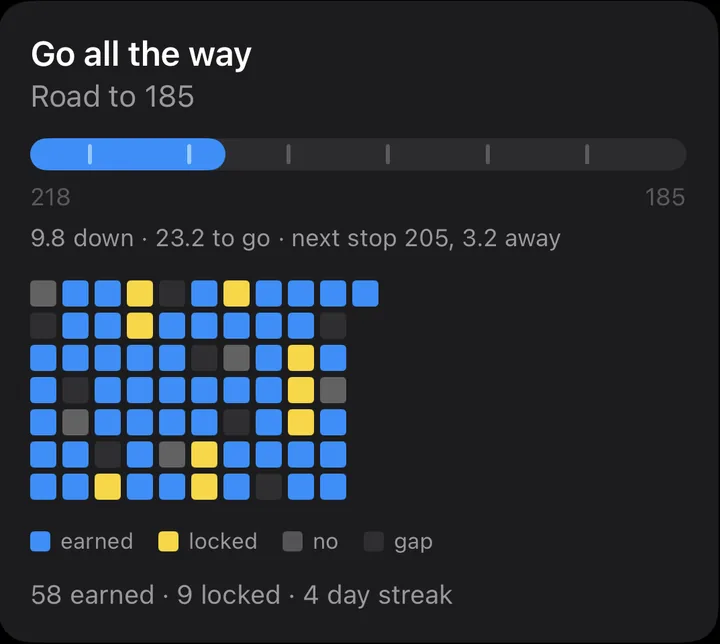
Earn It is the habit layer. Set a goal, and each evening the app asks one question: did you earn it today? Honest yeses become bricks in a wall. Short focused resets (one day, three days, or a week) that come back fully earned seal gold. The road meter above the wall tracks your actual weight toward your goal, mile marker by mile marker.
A missed day is just a gap in the wall, and the wall keeps going. There is no streak-shaming here, on purpose.
13. Progress photos and time-lapse
Attach a photo to any weigh-in from the Home tab. The Photos card builds your visual timeline: side by side comparisons, a slider, and overlays, and on iPhone automatic time-lapse videos that compress months of change into seconds. Because photos attach to real weigh-ins, every comparison carries its data: dates, weights, and the delta.
14. Exporting for your prescriber
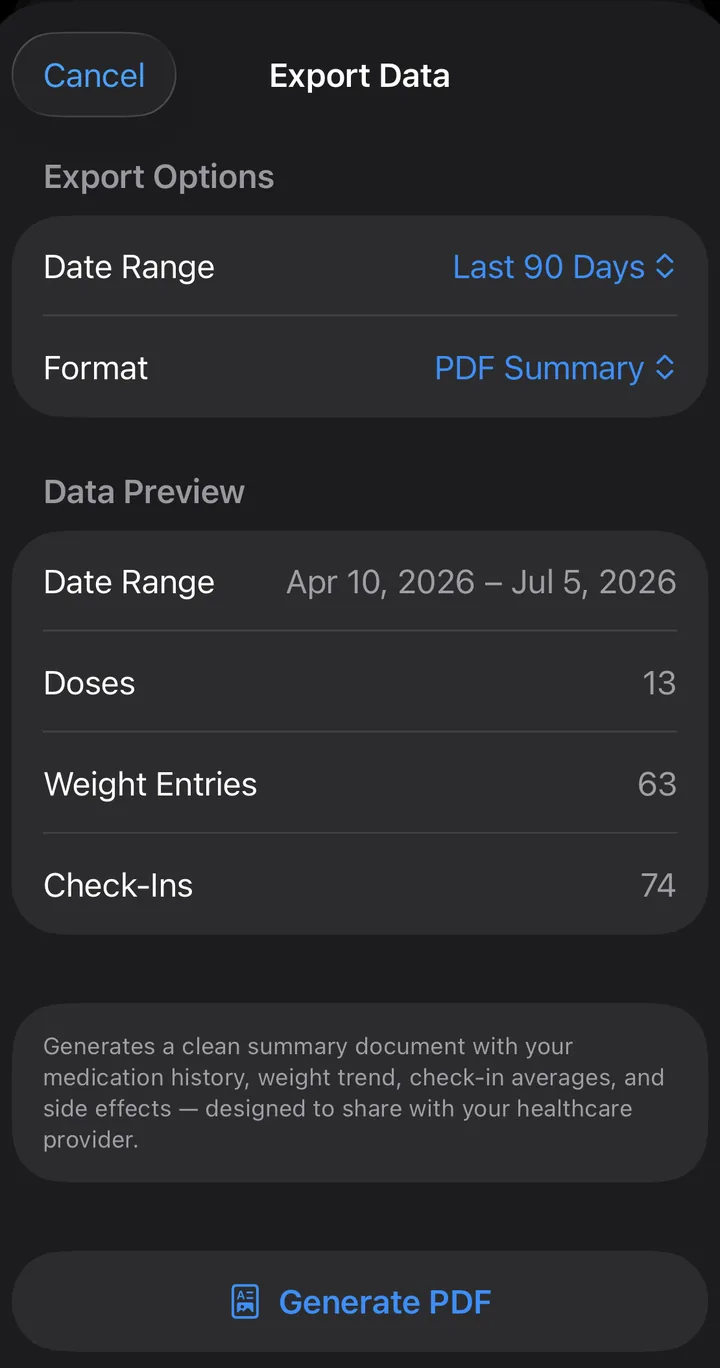
Settings offers a clean PDF summary or CSV export of your dose history, weight trend, check-in data, and side effects. Dose adjustments and insurance conversations go better with data than with memory.
Curious what the output looks like? See a real sample export (PDF), generated from test data with the same layout your prescriber would receive.
15. Settings worth knowing
The biggest layout choice is not in Settings at all: the By feel view toggle lives at the bottom of the Home tab. In Settings, Simple Doses tab trims the Doses tab to a glance tier with everything else one tap away, ideal if the full board feels like a lot. Check-in cadence switches the daily questions to weekly. Apple Health on iPhone, or Health Connect on Android, holds the two import toggles (weight and activity) plus export back to the health app. Units, themes, and reminders live here too, and Reset All Data does exactly what it says.
Free to download, with a 14-day trial of everything you just read about.
Download WeightSnapQuestions this page did not answer? Support has the FAQ.